Skip to content
Soft Tool Today

Discover the Best Digital Tools for Today’s Needs

How to Use Namecheap Email With Gmail

You can use Namecheap email with Gmail by linking the two accounts. This allows you to manage all your emails in one place, making it easier and more convenient.

Managing multiple email accounts can be a hassle. If you have a Namecheap email and a Gmail account, integrating them can simplify your life. By connecting Namecheap email with Gmail, you can send and receive all your emails from one inbox.

This setup not only saves time but also ensures that you never miss an important message. In this guide, we will show you step-by-step how to link your Namecheap email with your Gmail account. This way, you can enjoy the seamless experience of handling your emails from a single platform. Ready to streamline your email management? Let’s dive in!

Introduction To Namecheap Email

Managing your email can be a hassle, especially if you run a business. With many services available, you need one that’s reliable and easy to use. Enter Namecheap Email. This service offers a seamless way to manage your emails. Plus, it integrates well with other platforms like Gmail.

What Is Namecheap Email?

Namecheap Email is a service provided by Namecheap. It allows you to manage your email with a custom domain. This means you can have professional email addresses like you@yourdomain.com. It is designed to be user-friendly and reliable.

Benefits Of Namecheap Email

First, Namecheap Email offers excellent uptime. Your emails will always be available. This is crucial for staying connected with clients and customers.

Second, it provides strong security features. Your emails are protected from spam and phishing attacks. This keeps your information safe.

Third, the service is affordable. You get great features without breaking the bank. This makes it a good choice for small businesses and startups.

Fourth, it integrates well with other email services. For example, you can use Namecheap Email with Gmail. This allows you to manage all your emails from one place. It simplifies your workflow.

Finally, Namecheap offers excellent customer support. If you face any issues, help is just a click away. Their support team is known for being responsive and helpful.

How to Use Namecheap Email With Gmail

Credit: www.youtube.com

Setting Up Namecheap Email

Setting up your Namecheap email account can be easy. This guide will help you get it done quickly. Follow the steps below to connect your Namecheap email with Gmail.

Creating A Namecheap Email Account

First, log in to your Namecheap account. Navigate to the “Email” section. Click on “Add New Email Account.” Enter the desired email address and password. Confirm the details and click “Create Account.” Your Namecheap email account is now ready.

Configuring Dns Settings

Next, configure your DNS settings. Go to your Namecheap dashboard. Click on the “Domain List” tab. Find your domain and click “Manage.” Navigate to the “Advanced DNS” tab. Add the required MX records for your email service. This ensures your emails are routed correctly.

After adding the MX records, save the changes. Allow some time for the DNS settings to propagate. This process can take up to 48 hours. Once completed, your email will be ready to use with Gmail.

Integrating Namecheap Email With Gmail

Integrating Namecheap Email with Gmail helps streamline your email management. This integration allows you to handle both Namecheap and Gmail emails in one place. It improves your productivity and ensures you never miss an important email. Follow these steps to integrate Namecheap Email with Gmail easily.

Gmail Account Preparation

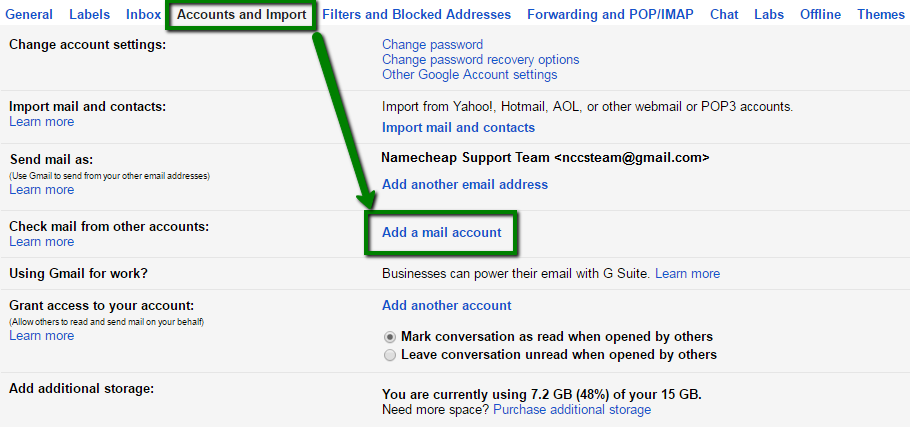
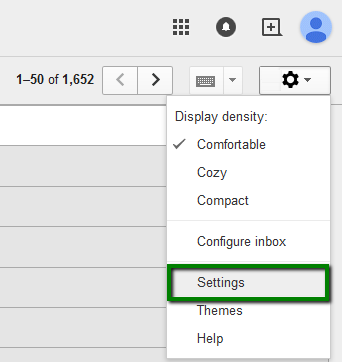
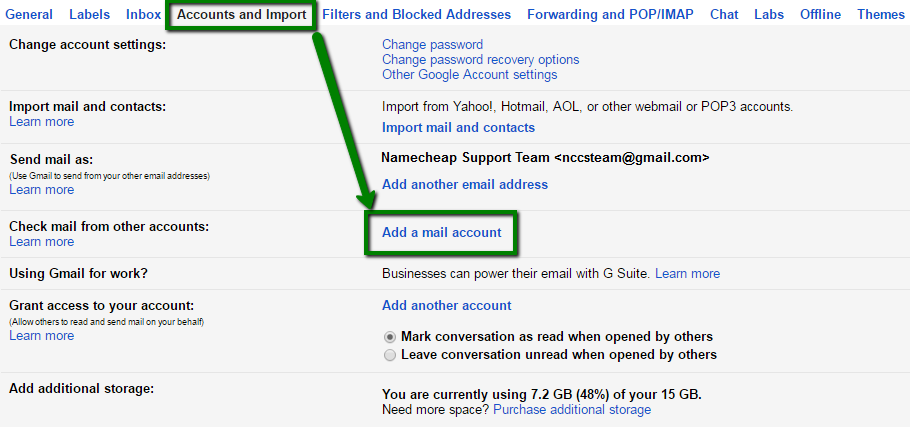
First, ensure your Gmail account is ready for integration. Open your Gmail account on your computer. Click on the gear icon in the top right corner. Select ‘See all settings’ from the dropdown menu. Navigate to the ‘Accounts and Import’ tab. Here, you will find options to add another email account.

Connecting Namecheap Email To Gmail

Now, connect your Namecheap Email to Gmail. In the ‘Accounts and Import’ tab, click on ‘Add a mail account’. A new window will pop up. Enter your Namecheap email address and click ‘Next’. Select ‘Import emails from my other account (POP3)’ and click ‘Next’.

Enter your Namecheap email settings. Fill in the username and password fields. For ‘POP Server’, enter ‘mail.yourdomain.com’. Use port 995. Check the box next to ‘Always use a secure connection (SSL)’. Click ‘Add Account’.

Next, you will be asked if you want to send emails as your Namecheap email. Select ‘Yes’ and click ‘Next’. Enter your Namecheap email details again. Use ‘mail.yourdomain.com’ as the SMTP server. Use port 465. Check ‘Secured connection using SSL’. Click ‘Add Account’.

Gmail will send a verification code to your Namecheap email. Check your Namecheap email for the code. Enter the code in Gmail and click ‘Verify’. Your Namecheap email is now integrated with Gmail.

Configuring Gmail Settings

Using Namecheap Email with Gmail is very convenient. It allows you to manage all your emails in one place. Setting up Gmail to work with Namecheap Email involves configuring a few settings. Follow these steps to ensure everything works smoothly.

Setting Up Gmail Pop3

To retrieve your Namecheap emails in Gmail, you need to set up POP3.

  1. Open your Gmail account and go to Settings.
  2. Click on the Accounts and Import tab.
  3. Under the Check mail from other accounts section, click Add a mail account.
  4. Enter your Namecheap email address and click Next.
  5. Select Import emails from my other account (POP3) and click Next.
  6. Enter your full email address as the username.
  7. Enter your Namecheap email password.
  8. In the POP Server field, enter mail.yourdomain.com.
  9. Set the port to 995.
  10. Check the box for Always use a secure connection (SSL) when retrieving mail.
  11. Click Add Account.

Configuring Smtp Settings

To send emails from your Namecheap account through Gmail, configure the SMTP settings.

  1. Go to the Accounts and Import tab in Gmail settings.
  2. Under the Send mail as section, click Add another email address.
  3. Enter your Namecheap email address and click Next Step.
  4. Enter smtp.yourdomain.com in the SMTP Server field.
  5. Set the port to 587 or 465.
  6. Choose Secured connection using TLS or SSL.
  7. Enter your full email address as the username.
  8. Enter your Namecheap email password.
  9. Click Add Account.

Now you can send and receive emails using your Namecheap email through Gmail. This method helps you manage your email communications effectively.

Managing Emails

Managing emails effectively is crucial. Using Namecheap Email with Gmail helps streamline email management. You can import emails, organize folders, and create labels. This guide will show you how to manage your emails easily.

Importing Emails

First, you need to import your emails from Namecheap to Gmail. Open Gmail, and click on the gear icon. Select “See all settings.” Go to the “Accounts and Import” tab. Click “Import mail and contacts.” Follow the instructions to import your emails. This process will bring your Namecheap emails into your Gmail account.

Organizing Folders And Labels

Gmail uses labels instead of folders to organize emails. Labels help you categorize your emails. Click on the “Create new label” option in the left sidebar. Name your label and click “Create.” You can now apply this label to any email.

To move emails into a label, select the email. Click on the label icon at the top. Choose the label you created. The email will now be organized under that label.

For better organization, use multiple labels for different categories. You can also nest labels under other labels. This keeps your inbox tidy and easy to navigate.

Troubleshooting Common Issues

Experiencing issues while using Namecheap Email with Gmail? You’re not alone. Many users face common problems. Let’s tackle these issues and make your email experience smooth.

Authentication Errors

Authentication errors can be frustrating. Follow these steps to resolve them:

  1. Double-check your login credentials: Ensure your username and password are correct. A small typo can cause issues.
  2. Enable Less Secure Apps: Gmail sometimes blocks apps it considers less secure. Enable this option in your Gmail settings.
  3. Two-Factor Authentication (2FA): If you use 2FA, generate an app-specific password. Use this instead of your regular password.

If these steps don’t work, contact Namecheap support for further assistance.

Email Sync Problems

Email sync problems can disrupt your communication. Here’s how to fix them:

  • Check IMAP/POP settings: Ensure IMAP/POP is enabled in your Gmail account. Go to Settings > Forwarding and POP/IMAP.
  • Update server settings: Use the correct server settings provided by Namecheap. Double-check for any errors.
  • Clear cache and cookies: Sometimes, cached data can cause issues. Clear your browser’s cache and cookies.

If the problem persists, check your internet connection. A stable connection is key to smooth email syncing.

Issue Solution
Incorrect Password Ensure the password is correct and case-sensitive.
IMAP Not Enabled Enable IMAP in Gmail settings under Forwarding and POP/IMAP.
Server Settings Verify server settings with Namecheap documentation.

Following these steps should resolve most issues. Happy emailing!

Advanced Configuration

Advanced Configuration of Namecheap Email with Gmail

Once you’ve set up your Namecheap email with Gmail, you might want to explore advanced settings. These settings can help you organize and manage your emails better. Below, we will cover using filters and rules, and setting up forwarding.

Using Filters And Rules

Filters and rules help sort emails automatically. This keeps your inbox clean and organized. Here’s how you can set them up:

  1. Open Gmail and click on the settings gear icon.
  2. Select See all settings.
  3. Navigate to the Filters and Blocked Addresses tab.
  4. Click on Create a new filter.
  5. Enter the criteria for the filter (e.g., from a specific email address).
  6. Click on Create filter.
  7. Choose what you want Gmail to do with the emails that match the criteria.
  8. Click Create filter to finalize.

Using filters can help you automatically label, archive, or delete emails. This can save you a lot of time and keep your inbox clutter-free.

Setting Up Forwarding

Forwarding lets you send a copy of incoming emails to another email address. This is useful if you use multiple email accounts. Here’s how to set it up:

  1. Open Gmail and click on the settings gear icon.
  2. Select See all settings.
  3. Navigate to the Forwarding and POP/IMAP tab.
  4. Click on Add a forwarding address.
  5. Enter the email address you want to forward emails to.
  6. Click Next and then Proceed.
  7. Check your forwarding email for a verification message from Gmail.
  8. Click the verification link in the email.
  9. Go back to Gmail settings and confirm the forwarding address.

Setting up forwarding ensures you don’t miss important emails. It also allows you to manage emails from one place.

How to Use Namecheap Email With Gmail

Credit: www.youtube.com

Maintaining Security

Maintaining security is crucial when using Namecheap Email with Gmail. Ensuring your email remains secure protects your personal information and communication. Focus on these key areas to enhance your email security.

Enabling Two-factor Authentication

Two-factor authentication (2FA) adds an extra layer of security. This method requires two verification steps to access your account. First, log in with your password. Then, enter a code sent to your mobile device. This method reduces the risk of unauthorized access.

Setting up 2FA on Gmail is simple. Go to your Google Account settings. Find the Security section. Click on 2-Step Verification. Follow the instructions to complete the setup. Always keep your mobile device secure. It plays a vital role in 2FA.

Regularly Updating Passwords

Regularly updating passwords helps keep your account secure. Change your passwords every few months. Use strong passwords with a mix of letters, numbers, and symbols. Avoid using easily guessed words or phrases.

To update your Namecheap Email password, log in to your Namecheap account. Go to the Security settings. Choose the option to change your password. Follow the instructions to complete the update. Do the same for your Gmail account. This habit ensures your email stays protected.

How to Use Namecheap Email With Gmail

Credit: www.namecheap.com

Frequently Asked Questions

How To Link Namecheap Email With Gmail?

To link Namecheap email with Gmail, go to Gmail settings. Add your Namecheap email as a new account under “Accounts and Import”.

Can I Use Gmail With Namecheap Email?

Yes, you can use Gmail with Namecheap email. Simply configure your Namecheap email in Gmail’s settings under “Accounts and Import”.

What Are The Benefits Of Using Namecheap Email With Gmail?

Using Namecheap email with Gmail offers convenience, better email management, and access to Gmail’s powerful features like spam filtering and search.

Is It Easy To Integrate Namecheap Email With Gmail?

Yes, integrating Namecheap email with Gmail is easy. Follow Gmail’s setup wizard to add your Namecheap email account.

Conclusion

Connecting Namecheap email with Gmail enhances email management. It’s simple and efficient. Follow the outlined steps carefully. This setup keeps your emails organized. You can access everything in one place. It saves time and effort. Now, handling emails becomes a breeze.

Enjoy the benefits of seamless integration. Your email experience just got better. Thank you for reading. Happy emailing!


How to Use Namecheap Email With Gmail

Connecting Namecheap Email with Gmail can improve your email experience. It’s simple and helps you manage all your emails in one place.

Many people use Namecheap for their domain and email services. But they prefer the user-friendly interface of Gmail. By linking your Namecheap email with Gmail, you can enjoy the best of both worlds. This setup lets you access, send, and organize all your emails through Gmail.

It’s convenient and efficient. In this guide, we’ll walk you through the steps to integrate Namecheap email with Gmail. Get ready to streamline your email management and make your life a bit easier.

Introduction To Namecheap Email And Gmail

In today’s digital era, managing multiple email accounts can be a hassle. Integrating Namecheap Email with Gmail simplifies email management by combining the strengths of both platforms. This guide will help you seamlessly merge Namecheap Email and Gmail for a streamlined email experience.

Benefits Of Integration

Integrating Namecheap Email with Gmail offers several advantages:

  • Centralized Inbox: Access all your emails in one place.
  • Enhanced Security: Benefit from Gmail’s advanced spam filters.
  • Ease of Use: Gmail’s user-friendly interface simplifies email management.
  • Mobile Access: Use the Gmail app to access Namecheap emails on the go.

Prerequisites

Before you start, make sure you have the following:

  1. A valid Namecheap Email account.
  2. An active Gmail account.
  3. Access to your Namecheap Email settings.
  4. Basic knowledge of email configuration.

Refer to the table below for quick reference:

Prerequisite Description
Namecheap Email account Your email account provided by Namecheap.
Gmail account Your email account provided by Google.
Access to settings Login credentials for both email accounts.
Email configuration Basic understanding of email setup processes.

With these prerequisites in place, you are ready to integrate Namecheap Email with Gmail.
How to Use Namecheap Email With Gmail

Credit: www.namecheap.com

Setting Up Namecheap Email

Setting up your Namecheap email with Gmail is a straightforward process. This integration allows you to manage all your emails in one place, making it easier to stay organized. Follow these steps to get started.

Creating An Email Account

First, log in to your Namecheap account. Go to the “Domain List” section and find your domain. Click on the “Manage” button next to it. Select “Email” from the left-hand menu. Click on the “Create Email Account” button.

Enter the desired email address and choose a strong password. Click “Save Changes” to create your email account. Your new Namecheap email account is now ready.

Accessing Email Settings

Next, you’ll need to find your email settings. In the “Email” section, look for the “Mail Settings” option. Here, you can find the server details required for setting up your email with Gmail. Note down the incoming and outgoing server details.

Open your Gmail account and go to “Settings” by clicking the gear icon. Select “See all settings” and then click on the “Accounts and Import” tab. Under “Check mail from other accounts,” click “Add a mail account.” Enter your Namecheap email address and click “Next.”

Select “Import emails from my other account (POP3)” and click “Next.” Enter the required server details you noted earlier. Fill in your Namecheap email address and password. Click “Add Account” to complete the setup.

Now, you can send and receive Namecheap emails directly from your Gmail account. This setup ensures all your emails are in one place, making it easier to manage your communications.

Configuring Gmail To Receive Namecheap Emails

Setting up Gmail to receive your Namecheap emails can simplify your email management. This process ensures all your emails are in one place. Follow these easy steps to configure Gmail to receive emails from your Namecheap account.

Accessing Gmail Settings

First, log in to your Gmail account. Next, click on the gear icon in the top right corner. Then, select “See all settings” from the dropdown menu. You will now be in the Gmail settings page.

Adding A Mail Account

In the settings page, find and click on the “Accounts and Import” tab. Scroll down until you see “Check mail from other accounts” and click on “Add a mail account”. A new window will pop up.

Enter your Namecheap email address in the provided field. Click “Next” and select “Import emails from my other account (POP3)”. Click “Next” again to proceed.

Enter your full Namecheap email address as the username. Enter your password in the respective field. For the POP Server, use “mail.yourdomain.com”. Ensure the port is set to 995 and check the box for “Always use a secure connection (SSL)”.

Decide if you want to leave a copy of the retrieved message on the server. You can also choose to label incoming messages and archive them. Once you have made your choices, click “Add Account”.

A confirmation message will appear. You have successfully added your Namecheap email to Gmail. All emails sent to your Namecheap email will now be received in your Gmail account.

Configuring Gmail To Send Namecheap Emails

If you want to manage your Namecheap emails through Gmail, you need to configure Gmail to send emails using your Namecheap domain. This section will guide you on how to set up the SMTP server and verify the SMTP configuration for seamless email integration.

Setting Up Smtp Server

To send emails from your Namecheap domain via Gmail, follow these steps:

  1. Open Gmail and go to Settings by clicking the gear icon.
  2. Select the Accounts and Import tab.
  3. Click Add another email address in the Send mail as section.
  4. Enter your Namecheap email address and click Next Step.
  5. For the SMTP server, enter mail.yourdomain.com.
  6. Use port 465 or 587.
  7. Choose Secured connection using SSL for port 465 or TLS for port 587.
  8. Enter your Namecheap email account’s username and password.
  9. Click Add Account.

Verifying Smtp Configuration

After setting up the SMTP server, you must verify the configuration:

  1. Gmail will send a verification email to your Namecheap email address.
  2. Open your Namecheap webmail or email client and find the Gmail verification email.
  3. Click the verification link in the email or enter the confirmation code in Gmail.
  4. Once verified, return to Gmail and refresh the page.
  5. Your Namecheap email address should now be listed under Send mail as.

You can now send emails from Gmail using your Namecheap email address. Enjoy seamless communication with your professional domain.

Managing Email Forwarding

Managing Email Forwarding is crucial for keeping your inbox organized. It allows you to direct emails from Namecheap to your Gmail account. This ensures you never miss important messages. Below, we’ll guide you through creating forwarding rules and troubleshooting any issues.

Creating Forwarding Rules

To start with email forwarding, you need to create rules. Follow these steps:

  1. Log in to your Namecheap account.
  2. Navigate to the Domain List section.
  3. Select the domain for which you want to set up forwarding.
  4. Click on Email Forwarding from the sidebar.
  5. Click the Add Forwarder button.
  6. Enter your Namecheap email address in the Forward From field.
  7. Enter your Gmail address in the Forward To field.
  8. Save the changes.

That’s it! Your emails will now forward from Namecheap to Gmail.

Troubleshooting Forwarding Issues

Sometimes, forwarding may not work as expected. Here are some common issues and solutions:

Issue Solution
Emails not arriving in Gmail Check if the forwarding rule is correctly set up. Ensure you saved changes.
Delayed emails Network issues can cause delays. Wait a few minutes before checking again.
Emails marked as spam Ensure your Gmail filters are not sending Namecheap emails to spam.

If issues persist, contact Namecheap support for further assistance.

How to Use Namecheap Email With Gmail

Credit: www.youtube.com

Organizing Emails In Gmail

Keeping your inbox tidy can help you stay focused and efficient. When you integrate Namecheap email with Gmail, you get the power to organize your emails better. Gmail offers many tools to help you manage your Namecheap emails. Let’s explore how to use these tools.

Creating Filters

Filters help you manage emails automatically. You can set up rules for incoming emails. For instance, you can filter emails from specific senders or with certain keywords.

To create a filter, click on the gear icon in Gmail. Select “See all settings”. Go to the “Filters and Blocked Addresses” tab. Click on “Create a new filter”. Enter the criteria for your filter. Click on “Create filter”. Choose what you want Gmail to do with these emails. Click on “Create filter” again to save it.

Labeling Namecheap Emails

Labels are like folders but more flexible. You can apply multiple labels to one email. This helps you find your Namecheap emails quickly.

To create a label, click on the gear icon and select “See all settings”. Go to the “Labels” tab. Scroll down and click on “Create new label”. Name your label and click “Create”. To apply a label, select the email. Click on the label icon at the top. Choose the label you created.

Labeling keeps your Namecheap emails organized. It makes searching for specific emails easier. You can also color-code your labels for better visibility. This helps in quick identification of important emails.

Security Considerations

When using Namecheap email with Gmail, security is crucial. You need to protect your email from unauthorized access and potential threats. Here are some key security considerations to keep your email safe.

Enabling Two-factor Authentication

Two-factor authentication (2FA) adds an extra layer of security. It requires a second form of verification. This can be a code sent to your phone or an authentication app. Enable 2FA on both Namecheap and Gmail. This step ensures only you can access your email.

Go to your Gmail settings. Find the “Security” section and enable 2FA. For Namecheap, log in to your account. Navigate to the “Security” settings and enable 2FA there as well. This makes it harder for hackers to access your accounts.

Recognizing Phishing Attempts

Phishing attempts try to trick you into giving away personal information. They often come as emails that look legitimate. Be cautious of emails asking for sensitive information. Do not click on suspicious links or download attachments from unknown sources.

Check the sender’s email address carefully. Look for any spelling mistakes or unusual domains. Hover over links to see the actual URL before clicking. If unsure, contact the sender through a different method. This helps verify the email’s authenticity.

Common Issues And Solutions

Using Namecheap Email with Gmail is often smooth. Yet, common issues can arise. This section covers those issues and offers solutions.

Authentication Errors

Sometimes, you may face authentication errors. This happens when Gmail cannot verify your Namecheap email account. Ensure that your username and password are correct. Double-check for typos. If the issue persists, reset your password. Use a strong and unique password. Also, check your server settings. They should match those provided by Namecheap.

Email Delivery Problems

Email delivery problems are another common issue. Emails might not arrive in your inbox. First, check your spam folder. Sometimes, legitimate emails end up there. Mark them as “Not Spam”. Next, check your filters. They might be misdirecting emails. Also, ensure your storage is not full. If it is, delete some old emails to free up space. Contact Namecheap support if problems continue. They can help identify and resolve the issue.

Conclusion And Best Practices

Using Namecheap Email with Gmail combines the best of both services. This setup ensures you get reliable hosting and a user-friendly interface. Here are some best practices to keep your email running smoothly.

Regular Maintenance Tips

  • Check for Updates: Regularly update both Namecheap and Gmail settings.
  • Backup Emails: Schedule regular backups to avoid data loss.
  • Monitor Storage: Keep an eye on your storage limits in Gmail.
  • Security Settings: Update passwords and enable two-factor authentication.
  • Spam Filters: Adjust spam filters to keep your inbox clean.

Optimizing Email Workflow

Efficient email management saves time and reduces stress. Here are tips to optimize your workflow:

  1. Labels and Filters: Use Gmail labels and filters to organize emails.
  2. Keyboard Shortcuts: Enable keyboard shortcuts in Gmail for quicker navigation.
  3. Unsubscribe: Regularly unsubscribe from unwanted newsletters.
  4. Auto-Responders: Set up auto-responders for common queries.
  5. Priority Inbox: Use Gmail’s priority inbox to focus on important emails.

These practices will help you maintain a clean and efficient email system. It ensures you make the most of both Namecheap and Gmail services.
How to Use Namecheap Email With Gmail

Credit: www.youtube.com

Frequently Asked Questions

How Do I Link Namecheap Email To Gmail?

To link Namecheap email to Gmail, go to Gmail settings. Then, add your Namecheap email account under “Accounts and Import”. Follow the prompts to complete the setup.

Can I Use Namecheap Email With Gmail?

Yes, you can use Namecheap email with Gmail. Simply configure your Namecheap email settings within your Gmail account. This allows you to manage your emails efficiently.

Is Namecheap Email Compatible With Gmail?

Yes, Namecheap email is compatible with Gmail. You can integrate your Namecheap email account into Gmail through the settings. This helps you consolidate your email management.

How To Set Up Namecheap Email In Gmail?

To set up Namecheap email in Gmail, go to Gmail settings. Add your Namecheap email under “Accounts and Import” and follow the instructions.

Conclusion

Connecting Namecheap Email with Gmail is simple and efficient. The steps are easy to follow. You can manage all your emails in one place. This integration saves time and boosts productivity. Remember to check settings if issues arise. Enjoy a seamless email experience.

Start integrating today and simplify your communication. Thank you for reading!
How Long Does Namecheap Hosting Take

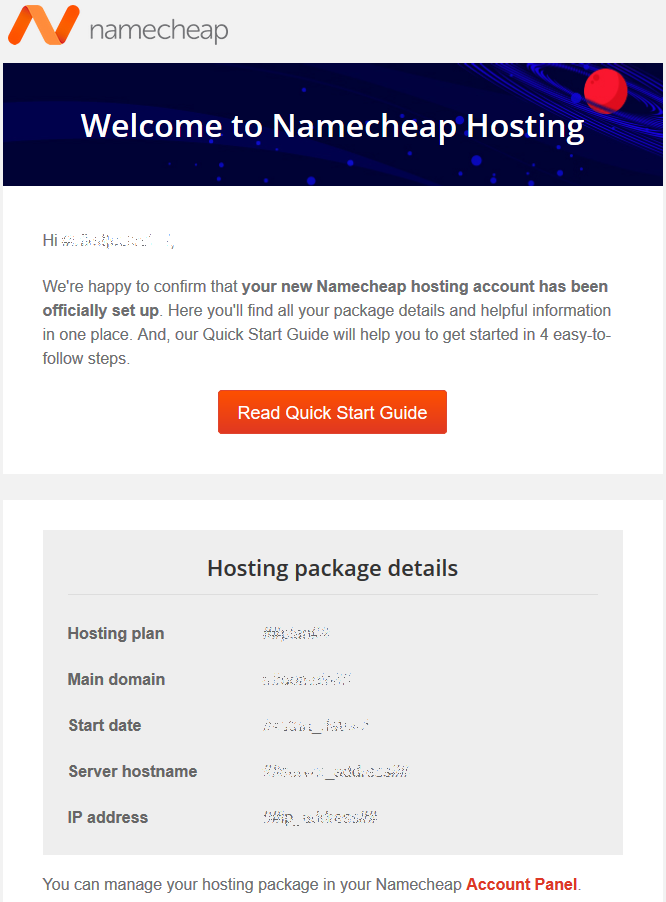
Namecheap hosting setup is quick. It usually takes just a few minutes.

If you’re considering Namecheap for your website, you’re likely curious about the setup time. The good news is that Namecheap hosting is designed to be fast and user-friendly. With a few simple steps, you can have your website up and running in no time.

Whether you’re a beginner or an experienced user, Namecheap’s efficient process ensures you won’t be waiting long. This speed is a significant advantage, especially if you need your site live quickly. Let’s explore what you need to know about the setup time and how you can get started right away.

Introduction To Namecheap Hosting

Welcome to the world of Namecheap Hosting. Namecheap is a well-known company in the web hosting industry. It provides reliable and affordable hosting services for all types of websites. Whether you’re a beginner or an experienced webmaster, Namecheap offers a variety of solutions to meet your needs.

Brief History

Namecheap was founded in 2000 by Richard Kirkendall. Over the years, it has grown into one of the leading domain registrars and web hosting providers. The company started with a focus on domain registration, but soon expanded its services to include web hosting, SSL certificates, and more.

Today, Namecheap serves millions of customers around the globe. It is known for its strong commitment to privacy, security, and customer service. The company has won several awards for its outstanding performance and reliability.

Popular Services

Namecheap offers a wide range of services to cater to different needs. Here are some of the most popular ones:

  • Shared Hosting: Ideal for small websites and blogs. Affordable and easy to use.
  • VPS Hosting: Offers more power and flexibility. Suitable for growing websites.
  • Dedicated Servers: Provides maximum performance and control. Best for large websites and businesses.
  • WordPress Hosting: Optimized for WordPress sites. Ensures fast and secure performance.
  • Reseller Hosting: Allows you to sell hosting services under your own brand.

In addition to hosting, Namecheap provides domain registration, SSL certificates, and email services. The company also offers website builders and other tools to help you create and manage your site with ease.

With Namecheap, you get more than just hosting. You get a partner that supports your online journey every step of the way.

Stay tuned to find out how long it takes to set up Namecheap Hosting.

Setup Process

The setup process for Namecheap hosting is straightforward. You can have your website up and running quickly. This guide will walk you through the essential steps. Let’s start with creating an account and choosing a plan.

Account Creation

First, visit the Namecheap website. Click on the “Sign Up” button. You will be prompted to enter your details. Provide a valid email address, a username, and a password. Once you have filled in your information, click the “Create Account” button. You will receive a confirmation email. Open the email and click the verification link. Your account is now active. You are ready for the next step.

Choosing A Plan

Next, choose a hosting plan that suits your needs. Namecheap offers different plans. Compare the features and prices. If you are unsure, start with a basic plan. You can upgrade later if needed. Click on the plan you want. You will be directed to the checkout page. Here, you can select the duration of your plan. Longer durations often come with discounts. Choose a duration and proceed to payment.

After payment, you will receive a confirmation. This includes details about your hosting plan. You can now start setting up your website. It’s that simple. The entire process is user-friendly and quick. You will be online in no time.

Domain Registration

Domain registration with Namecheap is straightforward and efficient. It involves two main steps: Domain Search and Domain Purchase. Let’s explore each step in detail.

Domain Search

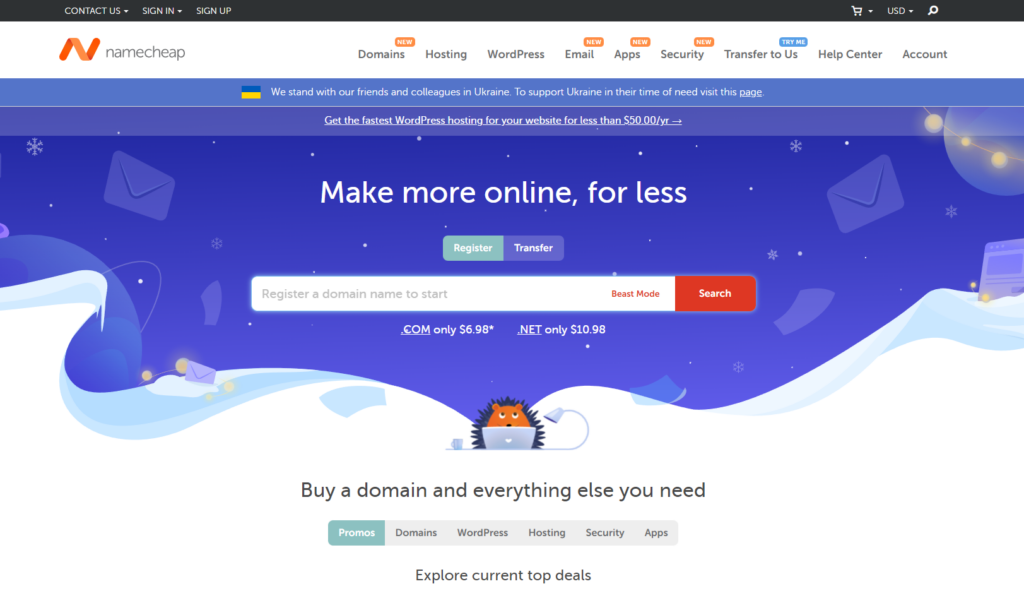
Start by visiting the Namecheap website. Use the search bar to check if your desired domain name is available. Type in your preferred name and click on the search button. Namecheap will display a list of available domains and their prices.

If your first choice is taken, Namecheap offers suggestions. These are similar names with different extensions. Common extensions include .com, .net, and .org. You can also try unique extensions like .tech or .shop. This flexibility ensures you find a domain that suits your needs.

Domain Purchase

Once you find an available domain, proceed to purchase it. Click on the “Add to Cart” button next to your chosen domain. Review your cart to ensure all details are correct. Namecheap often offers additional services like domain privacy protection. This service keeps your personal information private.

Next, click on the “Checkout” button. You will need to create an account if you don’t have one. Fill in your contact details and payment information. After confirming your details, click on the “Pay Now” button to complete the purchase.

After payment, Namecheap will immediately register your domain. This process usually takes a few minutes. You will receive a confirmation email with all the details. Your new domain is now ready for use.

How Long Does Namecheap Hosting Take

Credit: cybernews.com

Hosting Activation

Hosting activation with Namecheap is a straightforward process. This process involves a few key steps before your hosting account is ready to use. Let’s break down the steps to help you understand the timeline better.

Payment Confirmation

First, Namecheap needs to confirm your payment. This step is crucial as it ensures that the transaction is successful. Payment confirmation usually happens within a few minutes. You will receive an email confirming your payment status.

Account Activation Time

Once the payment is confirmed, the activation process begins. Namecheap’s system starts setting up your hosting account. This process is automated and typically takes a few minutes. You will receive another email once your account is active.

In most cases, your hosting account will be ready within 30 minutes. Sometimes, it might take up to an hour. If there are any delays, Namecheap’s support team is available to assist you. They ensure your hosting is up and running as quickly as possible.

Dns Propagation

DNS Propagation is an important part of setting up web hosting. When you update DNS records, the changes need to be spread out across the internet. This process is known as DNS propagation. It ensures that all users can access your website using the new DNS information.

What Is Dns Propagation?

DNS Propagation is the time it takes for DNS changes to be updated. These changes need to be reflected across all DNS servers worldwide. Each DNS server must update its records to know where to point the domain.

This process helps users reach the correct website when they type your domain. It ensures that the domain name points to the new hosting server.

Typical Time Frame

DNS Propagation can take different amounts of time. It usually takes 24 to 48 hours. Some changes might show up within a few hours. Others might take up to 72 hours. This time frame depends on various factors, such as the TTL (Time to Live) settings.

TTL settings control how long DNS information is cached. Lower TTL values can speed up propagation. However, they might also increase the load on DNS servers. Higher TTL values can slow down propagation but reduce server load.

How Long Does Namecheap Hosting Take

Credit: www.namecheap.com

Website Setup

Setting up a website with Namecheap hosting is straightforward. You can get your site online quickly. This section will guide you through the basic steps of website setup.

Installing Cms

First, access your Namecheap account. Find the cPanel and log in. Look for the Softaculous Apps Installer. This tool helps you install a Content Management System (CMS). Popular CMS options are WordPress, Joomla, and Drupal. Select the CMS you prefer. Follow the on-screen instructions to complete the installation. Your CMS is now ready for you to use.

Uploading Website Files

Next, you need to upload your website files. Log in to your cPanel again. Find the File Manager. Open the public_html directory. Click the ‘Upload’ button. Select the files from your computer. Wait for the upload to finish. Make sure all files are in the right directory. Your website files are now on the server. Check your site to ensure everything works correctly.

Customer Support

Good customer support is vital for any hosting service. Namecheap understands this well. They offer various support options to assist their customers. Let’s explore the key features of their customer support system.

Live Chat

Namecheap offers a 24/7 live chat support service. This is ideal for quick queries and immediate assistance. Live chat agents are well-trained and knowledgeable. They can help you with technical issues, billing questions, and general inquiries.

Here are some benefits of using the live chat:

  • Immediate response time
  • Available round-the-clock
  • Helpful for urgent issues

Many users prefer this option for its convenience and speed. Just visit the Namecheap website and click on the live chat button to get started.

Ticket System

For more complex issues, Namecheap offers a ticket system. This allows customers to submit detailed queries. The ticket system is best for problems that need in-depth assistance.

Here’s how it works:

  1. Log in to your Namecheap account
  2. Navigate to the support section
  3. Submit a new ticket with your query

Here are some advantages of the ticket system:

  • Allows detailed explanation of issues
  • Track the status of your request
  • Receive responses from specialized agents

While it may take a bit longer than live chat, the ticket system ensures that your issue is thoroughly reviewed and resolved.

Support Option Response Time Best For
Live Chat Instant Quick queries, urgent issues
Ticket System Within a few hours Detailed, complex issues
How Long Does Namecheap Hosting Take

Credit: www.whatsthehost.com

Common Issues

Setting up Namecheap hosting usually goes smoothly. But, some common issues may cause delays. These problems can frustrate users. Below, we discuss two frequent issues: payment problems and domain transfer delays.

Payment Problems

Payment problems can slow down the hosting setup. Sometimes, the payment gateway may fail. This can happen due to incorrect card details or insufficient funds. Double-check your payment information to avoid this issue.

Another common problem is payment verification. Namecheap might need more details to verify your payment. This can add extra time to the process. Be sure to provide accurate information to speed up verification.

Domain Transfer Delays

Domain transfer delays are another common issue. Transferring a domain to Namecheap can take time. This is because the process involves multiple steps. Each step must be completed correctly.

First, ensure that your domain is unlocked. You will also need an authorization code. Without these, the transfer cannot proceed. Also, check the email associated with the domain. You might need to confirm the transfer via email.

Sometimes, the previous registrar may delay the transfer. They might have specific rules or waiting periods. Patience is key during this process. Always follow the instructions given to avoid unnecessary delays.

Frequently Asked Questions

How Long To Set Up Namecheap Hosting?

Namecheap hosting setup typically takes just a few minutes. After purchasing a plan, follow the instructions. Your account will be ready almost instantly.

How Quick Is Namecheap Domain Registration?

Namecheap domain registration is instant. Once you complete the payment, your domain is registered and ready to use within minutes.

How Fast Is Namecheap Customer Support?

Namecheap offers 24/7 customer support. Response times are quick, usually within minutes through live chat or email.

Can I Transfer My Site To Namecheap Easily?

Yes, transferring your site to Namecheap is simple. They provide detailed guides and 24/7 support to assist you.

Conclusion

Choosing Namecheap hosting is a smart move for your website needs. Setup time is quick, often within minutes. You get reliable service and excellent support. This helps you focus on growing your site. Affordable pricing is an added bonus. Ready to start?

Namecheap makes it easy and fast. Enjoy smooth hosting without the hassle. Happy hosting!

How Much is Namecheap Domain Privacy

Namecheap offers domain privacy protection at an affordable price. For just $2.88 per year, you can safeguard your personal information.

When you register a domain, your personal details become public. This can lead to spam and unwanted contact. Namecheap’s domain privacy service hides your information from the public. This simple step helps protect your privacy. It’s a small investment with big benefits.

Let’s explore why domain privacy matters and how Namecheap provides this service at such a low cost. Protecting your identity online has never been easier or more affordable. Discover the value of keeping your personal details safe with Namecheap.

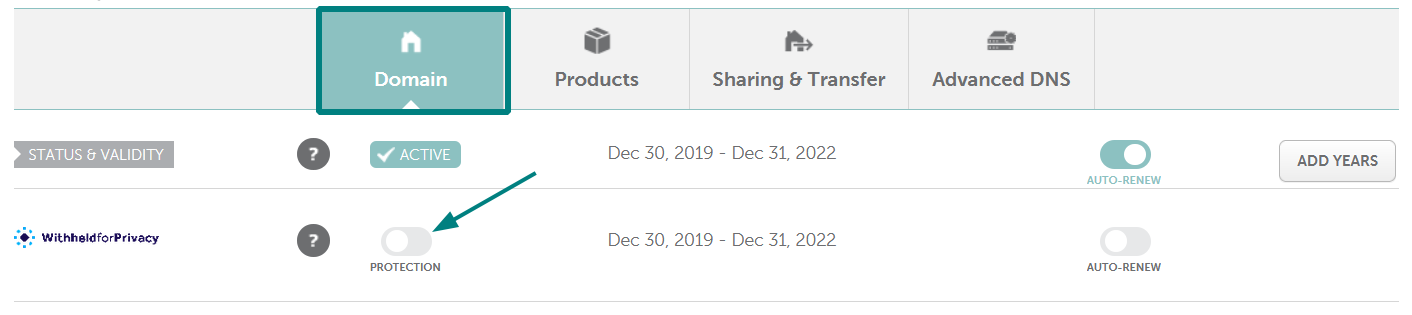
How Much is Namecheap Domain Privacy

Credit: www.namecheap.com

Namecheap Domain Privacy

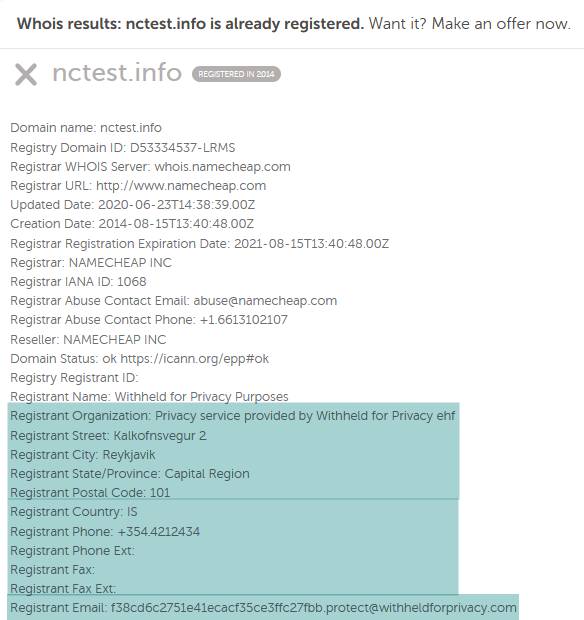
When registering a domain, protecting personal information is crucial. Namecheap offers domain privacy services to keep your details safe. This service hides your personal information from the public WHOIS database. Let’s explore why domain privacy is essential and what basic features Namecheap provides.

Importance Of Domain Privacy

Domain privacy protects personal details from being visible online. Without it, anyone can see your name, address, and email. This exposure can lead to spam, scams, and identity theft. It also reduces unwanted contact from marketers. So, domain privacy keeps your information secure and your inbox clean.

Basic Features

Namecheap’s domain privacy service includes several key features. First, it hides your personal information from public view. Second, it provides an anonymous email address for domain-related inquiries. This keeps your real email safe from spammers. Third, it offers easy management through Namecheap’s user-friendly interface. These features ensure your data stays private and protected.

How Much is Namecheap Domain Privacy

Credit: www.namecheap.com

Cost Of Namecheap Domain Privacy

Many people value their privacy. When you register a domain, your personal information becomes public. Namecheap offers domain privacy to protect this data. But how much does it cost? Understanding the cost of Namecheap Domain Privacy can help you make an informed decision.

Price Breakdown

Namecheap provides free domain privacy for the first year. After the first year, it costs $2.88 per year. This is a small price for the peace of mind it provides.

The service hides your personal details. This includes your name, address, email, and phone number. Instead, it shows generic information. This keeps your data safe from spammers and scammers.

Comparison With Competitors

Let’s compare Namecheap’s pricing with other providers. GoDaddy charges $9.99 per year for domain privacy. Bluehost asks for $11.88 per year. Both are higher than Namecheap’s $2.88.

Hover charges $5 per year. Still more than Namecheap. These higher costs add up over time. Namecheap offers the most affordable option. Plus, you get the first year free. This makes it an attractive choice for budget-conscious users.

Benefits Of Namecheap Domain Privacy

Using Namecheap Domain Privacy has several key benefits for your online presence. It helps protect your personal information and reduces unwanted spam. Learn more about how it enhances security and reduces spam below.

Security Enhancements

Keeping your personal data safe is crucial. Namecheap Domain Privacy hides your contact details from public databases. This makes it harder for hackers to access your information. Your name, address, email, and phone number stay private. This added layer of security gives you peace of mind.

Cybercriminals often use public WHOIS data to target domain owners. By using Namecheap Domain Privacy, you reduce the risk of identity theft. Your private information remains hidden, keeping you safe from potential threats.

Spam Reduction

Public WHOIS information often attracts spammers. They scrape these details to send unwanted emails and messages. Namecheap Domain Privacy prevents this by hiding your email address. This results in fewer spam emails and a cleaner inbox.

Spam calls and texts can also be a nuisance. With your phone number hidden, spammers are less likely to contact you. This reduces interruptions and helps you focus on what matters most.

How To Enable Domain Privacy

Enabling domain privacy on Namecheap is essential for protecting your personal information. It keeps your contact details hidden from the public WHOIS database. This ensures your privacy and reduces spam emails. Follow this guide to enable domain privacy on Namecheap.

Step-by-step Guide

First, log into your Namecheap account. Navigate to the “Domain List” on the left sidebar. Find the domain you want to enable privacy for. Click on the “Manage” button next to the domain name. Scroll down to the “Domain Privacy” section.

Toggle the switch to enable domain privacy. This action will immediately activate the privacy protection. Your contact details will now be hidden from public view.

Common Issues

Sometimes, the domain privacy toggle may not work. This can happen if your domain is not eligible. Ensure your domain is not restricted by ICANN policies. Another issue can be related to payment. Make sure your payment method is updated and active.

If you encounter issues, contact Namecheap support. They can assist with any technical problems. Always check your email for confirmation after enabling privacy.

User Experience

Understanding user experience is key in evaluating the value of Namecheap Domain Privacy. This includes customer reviews and case studies. Let’s explore what users say.

Customer Reviews

Many users share their experiences online. Reviews often highlight the ease of use and reliability. Here are some common points:

  • Easy setup: Users find the setup process straightforward.
  • Cost-effective: Many appreciate the affordable pricing.
  • Peace of mind: Users feel more secure with their privacy protected.

Overall, customer reviews show high satisfaction with Namecheap Domain Privacy.

Case Studies

Case studies provide deeper insights. They showcase real-world applications and outcomes. Consider these examples:

Case Study Outcome
Small Business Saved $100 annually by using Namecheap.
Freelancer Protected personal information effectively.
Non-Profit Organization Enhanced trust with privacy protection.

These case studies highlight the practical benefits. Users from different fields find value in Namecheap Domain Privacy.

Alternatives To Namecheap

Looking for alternatives to Namecheap domain privacy? You’re in luck. There are many other providers that offer domain privacy services. Each has its own pros and cons. Let’s dive into the details.

Other Providers

Several companies provide domain privacy services. Here are a few popular options:

  • GoDaddy: One of the most well-known domain registrars.
  • Google Domains: Known for its simplicity and integration with other Google services.
  • Bluehost: Popular among web hosting users.
  • Hover: Focuses on straightforward domain registration.

Pros And Cons

Each provider has its strengths and weaknesses. Here’s a quick look:

Provider Pros Cons
GoDaddy
  • Large user base
  • 24/7 customer support
  • Variety of services
  • Higher pricing
  • Upselling attempts
Google Domains
  • Easy to use
  • Free privacy protection
  • Strong security
  • Limited features
  • Higher renewal costs
Bluehost
  • Great for hosting and domains
  • Good customer support
  • Free domain for first year
  • Confusing interface
  • Higher renewal prices
Hover
  • Simple interface
  • Transparent pricing
  • Free domain privacy
  • Limited customer support
  • Fewer add-ons

Future Of Domain Privacy

The future of domain privacy is crucial for online security. As cyber threats grow, protecting personal information is vital. Namecheap is at the forefront, offering robust domain privacy features.

Upcoming Features

Exciting updates are on the horizon for domain privacy. Namecheap plans to introduce advanced privacy options. These will include:

  • Enhanced Data Encryption: Protects your data with stronger encryption methods.
  • Automatic Privacy Renewal: Ensures your privacy settings stay intact without manual renewal.
  • Anonymous Registration: Allows you to register domains without revealing personal details.

These features aim to offer comprehensive protection. Keeping your information safe and secure.

Industry Trends

The domain privacy landscape is evolving rapidly. Several trends are shaping the future:

  1. Increased Regulations: Governments worldwide are implementing stricter data protection laws.
  2. Greater User Awareness: More users now understand the importance of domain privacy.
  3. Improved Technology: Technological advancements are enhancing privacy tools and features.

These trends indicate a stronger focus on privacy. Companies like Namecheap are adapting to meet these demands.

How Much is Namecheap Domain Privacy

Credit: www.namecheap.com

Frequently Asked Questions

What Is Namecheap Domain Privacy?

Namecheap Domain Privacy is a service that protects your personal information. It replaces your details with generic information. This helps prevent spam and unwanted solicitations.

How Much Does Namecheap Domain Privacy Cost?

Namecheap Domain Privacy is free for the first year. After that, it costs around $2. 88 per year. This makes it affordable for most users.

Why Use Namecheap Domain Privacy?

Using Namecheap Domain Privacy protects your personal information. It helps prevent identity theft and reduces spam. It’s essential for online privacy.

Is Namecheap Domain Privacy Free?

Yes, Namecheap Domain Privacy is free for the first year. After the first year, a small fee applies. This makes it cost-effective.

Conclusion

Choosing Namecheap Domain Privacy offers great value. It keeps your personal data safe. Your contact details remain hidden from public records. This protection helps prevent spam and identity theft. The cost is low, making it affordable for everyone. Investing in domain privacy is wise for any website owner.

Protect your information easily. Stay secure and maintain privacy without breaking the bank. Consider Namecheap Domain Privacy for peace of mind today.

Why Namecheap is Better Than Godaddy

Choosing a domain registrar is an important decision. Namecheap and GoDaddy are two popular options.

Both offer unique features and pricing. Comparing these two services can help you make an informed choice. It’s crucial to understand their differences. This blog will explore why Namecheap stands out. We will look at pricing, customer service, and ease of use.

By the end, you’ll see why Namecheap might be the better option for you. Understanding these aspects can save you time and money. It ensures you select a service that meets your needs. So let’s dive in and see why Namecheap could be the best fit for you.

Pricing

Pricing is a significant factor when choosing a domain registrar. Affordable pricing can save you money in the long run. Let’s explore why Namecheap has better pricing than GoDaddy.

Domain Registration Costs

Namecheap offers competitive prices for domain registration. Their initial costs are often lower than GoDaddy’s. This makes Namecheap an attractive option for new website owners. You can register a domain on Namecheap for as low as $8.98 per year. GoDaddy’s prices, on the other hand, start higher. This difference can impact your budget, especially if you manage multiple domains.

Renewal Rates

Renewal rates are crucial for long-term domain management. Namecheap provides transparent and affordable renewal rates. You will not face unexpected price hikes. They keep their renewal costs reasonable, starting around $12.98 per year. GoDaddy often increases renewal rates significantly after the first year. This can lead to higher ongoing expenses. Choosing Namecheap can help you avoid these higher renewal costs and manage your budget more effectively.

Why Namecheap is Better Than Godaddy

Credit: www.websiteplanet.com

User Interface

The user interface is a crucial factor when choosing a domain registrar. A clean, intuitive interface makes managing domains easier. Namecheap and GoDaddy offer different user experiences. Let’s explore why Namecheap stands out.

Ease Of Use

Namecheap’s user interface is simple and straightforward. New users can easily navigate and find what they need. The dashboard provides clear options without overwhelming you. Each section is well-organized, making it easy to manage domains, hosting, and other services. You don’t need technical knowledge to get started. Just a few clicks and you’re set.

Navigation Experience

Navigation on Namecheap is smooth and logical. The menu is clearly labeled, helping you find tools quickly. Important features are accessible from the main dashboard. This saves time and reduces frustration. In contrast, GoDaddy’s interface can be cluttered. Too many options can confuse new users. Namecheap’s clean layout ensures you find everything with ease.

Customer Support

Choosing the right domain registrar involves considering customer support. Namecheap and GoDaddy both offer support, but Namecheap stands out. Let’s explore why.

Response Times

Namecheap has a reputation for fast response times. Customers often highlight how quickly they receive help. On the other hand, GoDaddy’s response times can be slower. This difference impacts user experience.

Aspect Namecheap GoDaddy
Average Response Time 15-30 minutes 1-2 hours

Support Channels

Namecheap provides multiple support channels. These include live chat, email, and a comprehensive knowledge base. Live chat is available 24/7, ensuring help anytime. Email support is also prompt and detailed.

GoDaddy offers phone support and email. Yet, live chat is not always available. This can be inconvenient for users needing immediate help.

  • Namecheap:
    • Live Chat (24/7)
    • Email Support
    • Knowledge Base
  • GoDaddy:
    • Phone Support
    • Email Support
    • Knowledge Base

Security Features

Security is a key concern for anyone with an online presence. Choosing a reliable hosting provider with strong security features is crucial. Namecheap and GoDaddy both offer security options, but Namecheap stands out in several areas. Let’s look at why Namecheap’s security features are superior.

Ssl Certificates

SSL certificates are essential for encrypting data between a user’s browser and your website. Namecheap offers free SSL certificates with its hosting plans. This ensures your website is secure without extra costs. GoDaddy, on the other hand, often requires you to purchase SSL certificates separately. This can quickly add up, making Namecheap a more cost-effective choice for SSL security.

Privacy Protection

Privacy protection is vital for keeping your personal information safe. Namecheap includes free WhoisGuard privacy protection with domain registrations. This service hides your personal details from the public Whois database. GoDaddy typically charges extra for this service. By offering free privacy protection, Namecheap helps keep your information secure and saves you money.

Hosting Plans

Choosing the right hosting plan is crucial for your website’s success. It can affect speed, security, and overall performance. Namecheap and GoDaddy are popular choices. But Namecheap has some advantages.

Shared Hosting

Namecheap offers affordable shared hosting plans. These plans are perfect for small websites or blogs. You get free domain privacy, a user-friendly control panel, and 24/7 support. Namecheap also provides free website migration. This means you can move your website with no extra cost. GoDaddy, on the other hand, charges for domain privacy and migrations. This can add to your overall costs.

Vps And Dedicated Servers

For growing websites, Namecheap’s VPS and dedicated servers are ideal. They offer more control and better performance. Namecheap provides flexible plans with root access. Their servers have high uptime and robust security. GoDaddy’s VPS and dedicated servers are pricier. Also, Namecheap’s customer support is more responsive. This ensures you get help quickly if issues arise.

Performance

Performance is crucial for any website. A fast, reliable site keeps visitors happy. It also helps with search engine rankings. When comparing Namecheap and GoDaddy, performance is a key factor.

Uptime Guarantee

Uptime is important for a website. Namecheap promises a 100% uptime guarantee. This means your site stays online all the time. GoDaddy, on the other hand, offers a 99.9% uptime guarantee. This small difference can be significant. Consistent uptime keeps your site available to users.

Speed And Reliability

Website speed affects user experience. A slow website frustrates visitors. Namecheap uses SSD storage for faster load times. This ensures your site runs smoothly. GoDaddy also uses SSDs but tends to have slower speeds. Reliable speed is essential for a positive user experience.

Reliable hosting means less downtime. Namecheap has a robust infrastructure. This means fewer disruptions. GoDaddy’s reliability is good, but not as strong as Namecheap’s. Namecheap’s focus on performance makes it a better choice for your hosting needs.

Additional Features

When choosing a domain registrar, additional features can make a big difference. Namecheap offers a range of tools that set it apart from GoDaddy. These features can enhance your online experience.

Email Services

Namecheap provides reliable email services. Each domain includes free email forwarding. This is a great way to manage your emails easily. Namecheap also offers professional email hosting at affordable prices. This ensures that your business communications are seamless and professional.

Website Builders

Namecheap includes access to easy website builders. These tools help you create a professional-looking site quickly. The interface is user-friendly, suitable even for beginners. Namecheap’s website builders offer a variety of templates. You can customize these to suit your brand or personal style. This feature is perfect for those who want a beautiful site without coding skills.

Why Namecheap is Better Than Godaddy

Credit: www.crazyegg.com

Customer Feedback

Customer feedback is a crucial factor when comparing web hosting services. It helps you understand real user experiences and satisfaction levels. Let’s explore the customer feedback for Namecheap and GoDaddy.

User Reviews

Many users praise Namecheap for its excellent customer service. They appreciate the quick response times and helpful support staff. On the other hand, GoDaddy users often report issues with support. Long wait times and unresolved issues are common complaints.

Industry Reputation

Namecheap has a strong reputation in the industry. Experts often commend its reliability and user-friendly interface. GoDaddy, while popular, has mixed reviews. Some experts highlight its extensive marketing but question its service quality.

Why Namecheap is Better Than Godaddy

Credit: www.youtube.com

Frequently Asked Questions

Is Namecheap More Affordable Than Godaddy?

Yes, Namecheap generally offers more competitive pricing for domain registration and renewal compared to GoDaddy. This makes Namecheap a cost-effective choice for budget-conscious users.

How Does Namecheap’s Customer Support Compare To Godaddy’s?

Namecheap provides 24/7 customer support through live chat, which is often faster and more efficient than GoDaddy’s support. Users typically experience quicker resolutions with Namecheap.

Does Namecheap Offer Free Privacy Protection?

Yes, Namecheap includes free WHOIS privacy protection with every domain registration. This feature protects your personal information, which GoDaddy charges extra for.

Which Has Better Uptime, Namecheap Or Godaddy?

Namecheap boasts a 99. 99% uptime guarantee, ensuring your website stays online. GoDaddy also offers good uptime, but Namecheap’s reliability is often praised more.

Conclusion

Choosing Namecheap over GoDaddy makes sense for many reasons. Namecheap offers lower prices. Their customer support is top-notch. The interface is simple and user-friendly. Security features are robust and reliable. Namecheap also provides free privacy protection. Overall, you get more value for your money.

Making the switch to Namecheap can benefit your online presence. Consider these factors when deciding. Your website deserves the best.

How to Use Namecheap Domain on Shopify

Connecting your Namecheap domain to Shopify is easy. Start selling online in no time.

Using a custom domain name boosts your brand’s credibility. It makes your online store look professional. Namecheap is a popular choice for buying domains because it’s affordable and user-friendly. Shopify, on the other hand, is a leading e-commerce platform. It helps you create and manage your online store effortlessly.

Combining Namecheap and Shopify gives you the best of both worlds. This guide will walk you through the steps. You’ll learn how to link your Namecheap domain to Shopify. Follow these simple instructions, and your store will be up and running soon. Ready to make your online business shine? Let’s get started!

How to Use Namecheap Domain on Shopify

Credit: www.namecheap.com

Introduction To Namecheap And Shopify

Starting an online store can be exciting. Choosing the right tools is key. Namecheap and Shopify are two popular options. Namecheap provides domain names. Shopify is a platform for e-commerce. Together, they help you build a strong online presence.

Why Choose Namecheap

Namecheap is a trusted domain name provider. It is known for affordable prices and excellent customer service. Here are some reasons to choose Namecheap:

  • Cost-effective: Namecheap offers competitive prices on domain names.
  • Ease of Use: The interface is simple and user-friendly.
  • Security: Free WhoisGuard to protect your personal information.
  • Customer Support: 24/7 support via chat or email.

Benefits Of Using Shopify

Shopify is a powerful e-commerce platform. It helps you create and manage an online store. Here are some benefits of using Shopify:

  • Ease of Setup: Set up your store quickly with no coding.
  • Customizable Themes: Many templates to choose from.
  • Payment Integration: Accept various payment methods.
  • SEO Tools: Built-in tools to improve your store’s visibility.
  • App Store: Add extra features with apps.

Combining Namecheap and Shopify can set you up for online success. Choose your domain with Namecheap. Build your store with Shopify. It’s that simple.

Purchasing A Domain On Namecheap

Purchasing a domain on Namecheap is an easy and affordable way to start your online store on Shopify. Namecheap offers a variety of domain options, making it simple for you to find the perfect domain for your brand. This guide will walk you through the steps of selecting and purchasing your domain on Namecheap.

Selecting The Right Domain

Choosing the right domain is crucial for your online presence. A good domain is memorable and reflects your brand. Here are some tips to help you select the best domain:

  • Keep it short and simple. Avoid long and complex names.
  • Choose a domain that is easy to spell and pronounce.
  • Incorporate keywords that are relevant to your business.
  • Avoid using numbers and hyphens, which can confuse customers.
  • Check for domain availability using Namecheap’s search tool.

Once you have a list of potential domains, use the search tool on Namecheap to see if they are available. This tool provides alternative suggestions if your preferred domain is taken.

Completing The Purchase

After selecting your domain, the next step is to complete the purchase. Follow these steps:

  1. Add the domain to your cart by clicking the “Add to Cart” button.
  2. Review your cart and select the registration period. Namecheap offers options from one year to ten years.
  3. Enable WHOIS Guard for privacy protection. This service keeps your personal information private.
  4. Click “Confirm Order” to proceed to checkout.
  5. Fill in your billing information and select a payment method. Namecheap accepts credit cards, PayPal, and Bitcoin.
  6. Review your order and click “Pay Now” to finalize the purchase.

After completing these steps, Namecheap will send a confirmation email with your domain details. You can now proceed to connect your new domain to Shopify.

Accessing Your Domain Settings

Accessing your domain settings on Namecheap is crucial for connecting your domain to Shopify. This process allows you to manage and configure your domain settings effectively. Let’s break it down into simple steps, starting with navigating the Namecheap dashboard and finding your domain.

Navigating The Namecheap Dashboard

First, log in to your Namecheap account. You’ll land on the dashboard. Here, you can see all your services. Look for the “Domain List” on the left-hand side. Click on it to proceed.

The Domain List section displays all your domains. Locate the domain you want to use with Shopify. This step is straightforward and easy to follow.

Finding Your Domain

Once you’re in the Domain List, find the specific domain. You can use the search bar if you have many domains. Type your domain name in the search bar to find it quickly.

After locating your domain, you’ll see a “Manage” button next to it. Click on this button to access your domain settings. This will take you to the domain management page.

Changing Dns Settings

Changing DNS settings is essential for connecting your Namecheap domain to Shopify. This process ensures your domain points to your Shopify store, making it accessible to your customers.

Understanding Dns Basics

DNS stands for Domain Name System. It translates domain names into IP addresses. This translation allows browsers to load websites. When you update DNS settings, you change how your domain directs traffic. Understanding this concept is crucial before making changes.

Term Explanation
DNS Domain Name System
IP Address Internet Protocol Address, a unique number for a device
A Record Maps a domain to an IP address
CNAME Maps a domain to another domain

Updating Dns Records

To update your DNS records, follow these steps:

  1. Log in to your Namecheap account.
  2. Go to the Dashboard and select Domain List.
  3. Click the Manage button next to your domain.
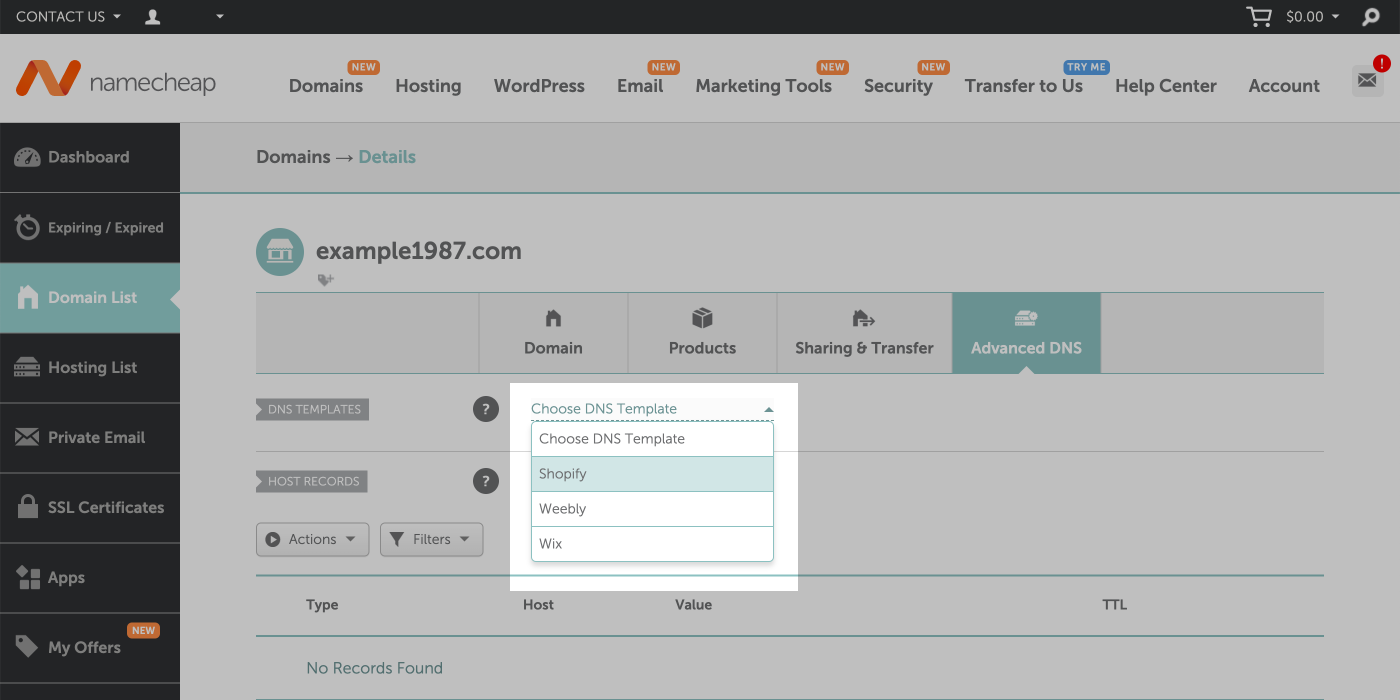
  4. Navigate to the Advanced DNS tab.

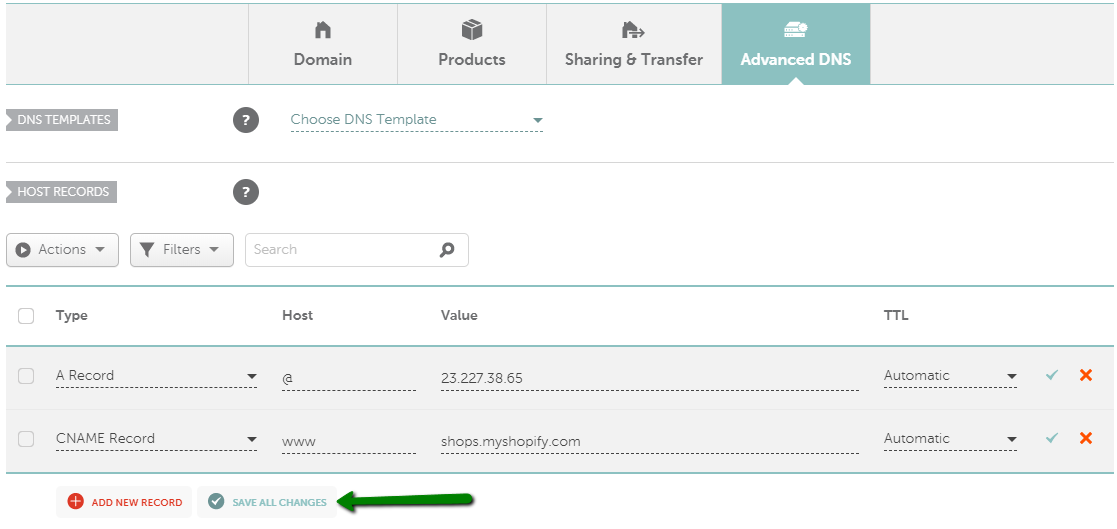
Here, you will see different types of DNS records. To connect your domain to Shopify, you need to update the A Record and CNAME Record.

Update the A Record:

  • Find the A Record section.
  • Edit the record to point to Shopify’s IP address: 23.227.38.65.
  • Save your changes.

Update the CNAME Record:

  • Find the CNAME Record section.
  • Change the www value to shops.myshopify.com.
  • Save your changes.

After updating these records, it may take a few hours for the changes to propagate. Once complete, your Namecheap domain will point to your Shopify store.

Connecting Your Domain To Shopify

Connecting your Namecheap domain to Shopify is a key step in building your online store. This process ensures your customers can easily find your website. Follow these simple steps to link your domain and start selling online with Shopify.

Accessing Shopify Admin

First, log in to your Shopify account. You will land on your Shopify admin dashboard. This dashboard allows you to manage all aspects of your store.

In the left-hand menu, find and click on “Settings.” Next, click on “Domains.” You will see options for managing your store’s domain.

Adding A Custom Domain

In the “Domains” section, click on “Connect existing domain.” A new page will appear. Enter your Namecheap domain name in the provided field.

Click “Next.” Shopify will show instructions for updating your DNS settings in Namecheap. Follow these steps carefully. Log in to your Namecheap account in another tab.

In Namecheap, go to the “Domain List” tab. Find your domain and click “Manage.” Under the “Advanced DNS” tab, add the provided Shopify records. Save the changes.

Return to Shopify and click “Verify connection.” Shopify may take a few minutes to verify. Once verified, your domain will be connected to your Shopify store. Now, your customers can visit your store using your custom domain.

Verifying Domain Connection

Verifying that your Namecheap domain is correctly connected to your Shopify store is essential. This ensures that your customers can access your site without any issues. Follow these steps to confirm the connection is successful.

Checking Dns Propagation

After updating your DNS settings, it might take some time for changes to propagate. DNS propagation can take up to 48 hours. To check the status:

  • Go to a DNS propagation checker tool online.
  • Enter your domain name.
  • Check if the DNS records are updated worldwide.

If the DNS records show the correct IP address, the changes are successful.

Confirming Domain Setup

Once DNS propagation is complete, confirm the domain setup in Shopify. Follow these steps:

  1. Log in to your Shopify admin panel.
  2. Go to Online Store and then Domains.
  3. Check if your domain is listed as connected.

If your domain shows as connected, it is correctly set up.

Ensure to refresh your browser or clear the cache if you face any issues.

Troubleshooting Common Issues

How to Use Namecheap Domain on Shopify

Setting up a Namecheap domain on Shopify can be tricky. Problems can arise, causing frustration. This guide will help you troubleshoot common issues.

Dns Errors

DNS errors are common when configuring a domain. Ensure your DNS settings are correct.

  • Log in to your Namecheap account.
  • Go to the Domain List tab.
  • Click Manage next to your domain.
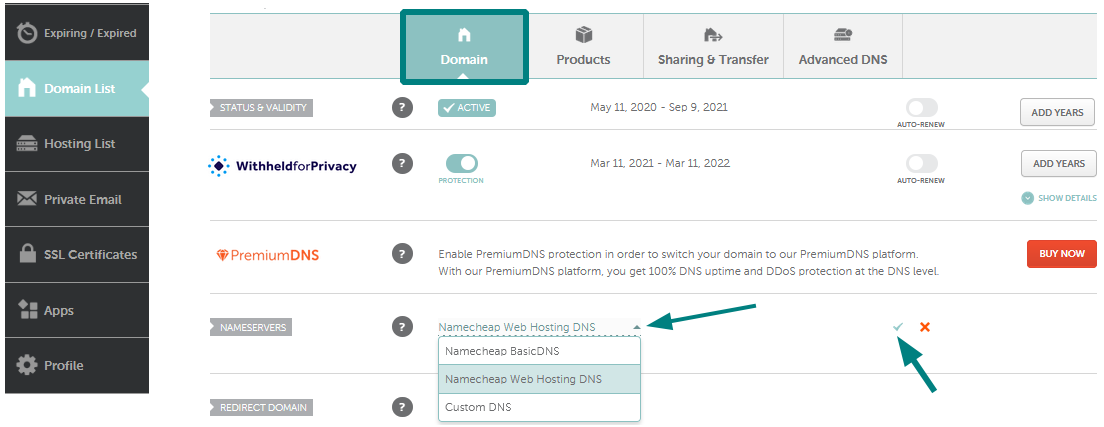
  • Set the DNS to Namecheap BasicDNS.

Next, update the DNS records:

Type Host Value TTL
A Record @ 23.227.38.65 Automatic
CNAME Record www shops.myshopify.com Automatic

Incorrect DNS settings cause most errors. Double-check these values.

Domain Not Connecting

Sometimes, your domain won’t connect to Shopify. Follow these steps to fix it.

  1. Log in to your Shopify admin.
  2. Go to Online Store > Domains.
  3. Click Connect existing domain.
  4. Enter your domain and click Next.
  5. Follow the instructions to verify the connection.

If the domain still doesn’t connect, check the following:

  • Ensure your A Record points to Shopify’s IP address: 23.227.38.65.
  • Verify your CNAME Record points to: shops.myshopify.com.
  • Wait for DNS propagation. It can take up to 48 hours.

Persistent issues? Contact Namecheap support for help.

Maintaining Your Domain

Maintaining your Namecheap domain on Shopify ensures your online store runs smoothly. This involves regular updates and renewals. Let’s explore these critical steps.

Renewing Your Domain

To keep your domain active, you need to renew it before it expires. Here’s how:

  1. Log in to your Namecheap account.
  2. Navigate to the Dashboard.
  3. Select the domain you want to renew.
  4. Click on Renew.
  5. Choose your renewal period and confirm payment details.

Set up auto-renewal to avoid missing renewal dates. Auto-renewal ensures your domain stays active without manual intervention.

Updating Contact Information

Keep your contact information up to date. This is vital for domain management and security.

Follow these steps to update your contact details:

  • Log in to your Namecheap account.
  • Go to Account Settings.
  • Click on Profile.
  • Update your email, phone number, and address.
  • Save the changes.

Ensure your email is correct. Important notifications about your domain will be sent here.

Additional Tips And Resources

Setting up your Namecheap domain on Shopify can be straightforward. But, having extra tips and resources can make the process smoother. Here are some additional pointers to help you.

Using Namecheap Support

Namecheap offers excellent support services. Their team can help you with any domain-related issues.

  • Visit the Namecheap Support Center for guides and FAQs.
  • Use the live chat feature for quick assistance.
  • Check out their video tutorials for step-by-step instructions.

Don’t hesitate to reach out. Their support team is friendly and knowledgeable.

Exploring Shopify Guides

Shopify provides a wealth of resources to help you. Explore their guides to make the most of your online store.

Resource Description
Shopify Help Center Detailed articles on every aspect of your store.
Shopify Academy Free courses on various e-commerce topics.
Shopify Community Forums where you can ask questions and share tips.

These resources can be invaluable. They help you understand how to use your Namecheap domain on Shopify effectively.

How to Use Namecheap Domain on Shopify

Credit: help.shopify.com

How to Use Namecheap Domain on Shopify

Credit: www.namecheap.com

Frequently Asked Questions

How Do I Connect Namecheap Domain To Shopify?

To connect your Namecheap domain to Shopify, log in to your Namecheap account. Update the DNS settings to point to Shopify’s IP addresses. Verify the domain connection in your Shopify admin panel.

Can I Use A Namecheap Domain On Shopify?

Yes, you can use a Namecheap domain on Shopify. You need to update the DNS settings in your Namecheap account to point to Shopify.

What Are The Dns Settings For Shopify?

The DNS settings for Shopify include an A record pointing to Shopify’s IP address and a CNAME record pointing to shops. myshopify. com.

How Long Does Domain Setup Take?

The domain setup process can take up to 48 hours to fully propagate. However, it usually takes less time.

Conclusion

Connecting your Namecheap domain to Shopify is straightforward. Follow the steps provided. Enjoy the benefits of a branded domain. Your online store will appear more professional. Customers will trust you more. It’s a simple way to boost credibility. With these tips, you can easily manage your domain.

Now, your Shopify store is ready to shine. Happy selling!

Digital Marketplace for the Web’S Best Software Deals: Ultimate Savings

Digital Marketplace for the Web’S Best Software Deals

Welcome to the digital marketplace for the web’s best software deals. This is where you find amazing discounts and lifetime deals on software. DealMirror is the place to visit for these exciting offers.

What is DealMirror?

DealMirror is an online platform. It specializes in providing lifetime deals and discounts on various software, digital tools, and SaaS products. It is very popular among entrepreneurs, small businesses, marketers, and tech enthusiasts. They all want to save money and get valuable tools.

Key Features of DealMirror

  • Lifetime Deals: DealMirror offers one-time payment deals for software. No more recurring subscriptions. This makes it cost-effective for users.
  • Focus on Digital Tools: The deals often include tools related to productivity, marketing, SEO, design, e-commerce, and more.
  • Curated Offers: The products featured on the site are usually handpicked. They cater to businesses and individuals looking for innovative and affordable solutions.
  • Community Engagement: Reviews, user feedback, and community discussions help potential buyers evaluate products before making a purchase.

Lifetime Deals

One of the best features of DealMirror is the lifetime deals. You pay once and use the software forever. No need to worry about monthly or yearly fees. This saves you a lot of money in the long run.

Focus On Digital Tools

DealMirror focuses on digital tools that help you work better. These tools are for productivity, marketing, SEO, design, e-commerce, and more. You can find software that makes your work easier and faster.

Curated Offers

The team at DealMirror carefully selects the products featured on the site. They choose tools that are innovative and affordable. This means you get the best deals on the best products.

Community Engagement

DealMirror values its community. Reviews, user feedback, and community discussions are very important. They help you decide if a product is right for you. You can read what others think before you buy.

Digital Marketplace for the Web'S Best Software Deals: Ultimate Savings

Credit: lifetimo.com

Why Choose DealMirror?

There are many reasons to choose DealMirror. Here are a few:

  • Save Money: Lifetime deals save you money. You pay once and use the software forever.
  • High-Quality Tools: The tools are carefully selected. They are innovative and affordable.
  • Community Trust: Reviews and feedback help you make the best choice.

Popular Categories on DealMirror

DealMirror offers deals in various categories. Here are some of the most popular:

Category Description
Productivity Tools to help you work smarter and faster.
Marketing Software to boost your marketing efforts.
SEO Tools to improve your website’s search engine ranking.
Design Creative tools for designers and artists.
E-commerce Solutions for online stores and businesses.

How to Get Started with DealMirror

Getting started with DealMirror is easy. Follow these simple steps:

  1. Visit the DealMirror website.
  2. Browse the available deals.
  3. Read reviews and feedback from other users.
  4. Choose the deal that best suits your needs.
  5. Make a one-time payment and enjoy lifetime access.

Customer Reviews

Here are some reviews from happy customers:

“DealMirror helped me save a lot of money on software. The lifetime deals are amazing!” – Jane D.

“I found the perfect tool for my business on DealMirror. Highly recommended!” – Mark R.

“The community feedback and reviews are very helpful. I always know I’m making a good choice.” – Sarah L.

Frequently Asked Questions

What Is Dealmirror?

DealMirror is an online platform offering lifetime deals and discounts on software and digital tools.

Who Can Benefit From Dealmirror?

Entrepreneurs, small businesses, marketers, and tech enthusiasts can benefit from DealMirror’s affordable software deals.

What Type Of Deals Does Dealmirror Offer?

DealMirror offers one-time payment deals for various software and digital tools, eliminating recurring subscriptions.

What Kind Of Software Does Dealmirror Feature?

DealMirror features software for productivity, marketing, SEO, design, e-commerce, and more.

Conclusion

DealMirror is the best digital marketplace for the web’s best software deals. It offers lifetime deals, focuses on digital tools, and values community engagement. By choosing DealMirror, you save money and get high-quality tools. Visit DealMirror today and find the perfect software for your needs.

Digital Marketplace for the Web'S Best Software Deals: Ultimate Savings

Credit: www.retailtouchpoints.com

Additional Information

For more details, visit the DealMirror website. Explore the amazing deals and join the community of savvy buyers. Save money and get the best tools for your work.

Black Friday Best Software Deals: Unbeatable Savings for 2024


Black Friday is the best time to find software deals. Let’s explore the top software deals you can find this year.

What is DealMirror?

DealMirror is an online platform. It offers lifetime deals and discounts on various software. Entrepreneurs, small businesses, and tech enthusiasts love DealMirror. They save money while getting valuable tools.

Key Features of DealMirror

  • Lifetime Deals: Pay once for software. No need for recurring subscriptions.
  • Focus on Digital Tools: Deals include tools for productivity, marketing, SEO, design, and e-commerce.
  • Curated Offers: Handpicked products for businesses and individuals.
  • Community Engagement: Reviews and user feedback help you evaluate products.

Top Black Friday Software Deals on DealMirror

1. Productivity Software

Stay organized and manage your tasks efficiently. Check out these productivity tools:

  • Task Manager Pro: A powerful tool to manage your tasks and projects.
  • Note Keeper: Keep all your notes in one place. Easy to search and organize.

2. Marketing Tools

Boost your marketing efforts with these amazing tools:

  • SEO Analyzer: Improve your website’s SEO and attract more visitors.
  • Email Campaign Master: Create and manage successful email campaigns.

3. Design Software

Create stunning designs with these top design tools:

  • Graphic Designer Pro: Design beautiful graphics for your projects.
  • Logo Maker: Create unique logos for your brand.

4. E-commerce Solutions

Grow your online store with these e-commerce tools:

  • Store Manager: Manage your online store efficiently.
  • Sales Booster: Increase your sales with advanced marketing features.
Black Friday Best Software Deals: Unbeatable Savings for 2024

Credit: boldsign.com

Why Choose DealMirror for Black Friday Deals?

DealMirror offers the best software deals. Here are some reasons to choose DealMirror:

  • Cost-Effective: Save money with lifetime deals.
  • Wide Range: Find deals on various digital tools.
  • Trusted Platform: DealMirror is popular among entrepreneurs and tech enthusiasts.
Black Friday Best Software Deals: Unbeatable Savings for 2024

Credit: www.youtube.com

How to Get the Best Deals on DealMirror

Follow these steps to get the best deals:

  1. Visit DealMirror.
  2. Browse the Black Friday deals.
  3. Choose the software you need.
  4. Make a one-time payment and enjoy lifetime access.
https://www.youtube.com/watch?v=I7BEJbUcAkk

Customer Reviews

Here are some reviews from happy customers:

Customer Review
John Doe “DealMirror offers the best deals. I saved a lot on software.”
Jane Smith “I love the lifetime deals. I don’t have to worry about subscriptions.”

Frequently Asked Questions

What Are The Best Black Friday Software Deals For 2023?

The best deals include discounts on antivirus, productivity software, and design tools.

How To Find Black Friday Software Discounts?

Check popular deal sites like DealMirror and subscribe to newsletters.

Are Black Friday Software Deals Worth It?

Yes, they offer significant discounts on essential software tools.

When Do Black Friday Software Deals Start?

They usually start a week before Black Friday and continue through Cyber Monday.

Conclusion

Don’t miss out on the Black Friday Best Software Deals. Visit DealMirror and save big on top digital tools.

Find the best deals at DealMirror and enjoy lifetime access to amazing software.

Best Software Deals for Students: Unbeatable Discounts & Offers


Students need the right tools to succeed in their studies. The Best Software Deals for Students help them get these tools at a lower price. In this article, we will explore some of the best deals available for students.

Best Software Deals for Students: Unbeatable Discounts & Offers

Credit: www.sweetwater.com

Best Software Deals for Students: Unbeatable Discounts & Offers

Credit: www.nssi.com

Introduction to DealMirror

DealMirror is an online platform that offers lifetime deals on various software. It is popular among students, entrepreneurs, and tech enthusiasts. DealMirror helps students get the tools they need without spending a lot of money.

Key Features Of Dealmirror

  • Lifetime Deals: One-time payment deals for software, making it cost-effective for users.
  • Focus on Digital Tools: Deals include tools related to productivity, marketing, SEO, design, e-commerce, and more.
  • Curated Offers: Handpicked products, catering to businesses and individuals looking for affordable solutions.
  • Community Engagement: Reviews, user feedback, and discussions help potential buyers evaluate products.

Top Software Deals for Students

Here are some of the best software deals for students available on DealMirror:

1. Productivity Tools

Productivity tools help students stay organized and manage their time effectively. Here are some top deals:

Software Description Deal Price
Todoist A task manager that helps students keep track of their assignments and projects. $29.99 (Lifetime Deal)
Notion An all-in-one workspace for notes, tasks, and databases. $49.99 (Lifetime Deal)

2. Design Tools

Design tools are essential for students in creative fields. Here are some top deals:

Software Description Deal Price
Canva A graphic design tool that makes it easy to create stunning visuals. $12.99 (Lifetime Deal)
Crello A design tool for creating social media graphics, posters, and more. $19.99 (Lifetime Deal)

3. Development Tools

Development tools are crucial for students learning coding and programming. Here are some top deals:

Software Description Deal Price
JetBrains An integrated development environment (IDE) for various programming languages. $49.99 (Lifetime Deal)
GitHub A platform for version control and collaboration. Free for students

4. Marketing Tools

Marketing tools help students learn digital marketing skills. Here are some top deals:

Software Description Deal Price
SEMrush An all-in-one marketing toolkit for SEO, content marketing, and more. $79.99 (Lifetime Deal)
Hootsuite A social media management tool for scheduling posts and tracking performance. $29.99 (Lifetime Deal)
https://www.youtube.com/watch?v=B_aH1rElHKM

How to Get the Best Software Deals

Getting the best software deals is easy with DealMirror. Here are some tips:

  1. Visit the DealMirror website.
  2. Browse the available deals.
  3. Read reviews and user feedback.
  4. Choose the software that meets your needs.
  5. Purchase the software at the discounted price.

Frequently Asked Questions

What Are The Best Software Deals For Students?

Students can find deals on productivity, design, and learning tools. These include discounts on software like Microsoft Office, Adobe Creative Cloud, and educational platforms.

How Can Students Save On Software Purchases?

Students can use platforms like DealMirror for lifetime deals and discounts. Many companies also offer student-specific pricing.

Are There Free Software Options For Students?

Yes, many companies offer free versions or trials of their software for students, including Google Workspace and Canva.

Where Can Students Find Software Discounts?

Students can find software discounts on websites like DealMirror, educational institution portals, and directly from software providers.

Conclusion

Students need the right tools to succeed in their studies. The Best Software Deals for Students help them get these tools at a lower price. DealMirror offers a wide range of deals on productivity, design, development, and marketing tools. By following the tips mentioned above, students can get the best software deals and make the most of their studies.

For more information, visit the DealMirror website.

Best Software Deals Cyber Monday: Unbeatable Discounts Await!


Cyber Monday is the best time to save money on software. This is when you can find amazing deals on tools you need. One of the best places to find these deals is DealMirror. They offer lifetime deals and discounts on many digital tools.

Why Cyber Monday is Special

Cyber Monday is the Monday after Thanksgiving. It is known for having the best online deals. People love it because they can buy great products at low prices. This is the perfect time to get software you need for work or fun.

What is DealMirror?

DealMirror is an online platform. They offer lifetime deals on various software and digital tools. You pay once and use the software forever. This is great for saving money. They have tools for productivity, marketing, SEO, design, and more.

Key Features of DealMirror

  • Lifetime Deals: Pay once and use the software forever.
  • Focus on Digital Tools: They offer tools for productivity, marketing, SEO, design, e-commerce, and more.
  • Curated Offers: Handpicked products for businesses and individuals.
  • Community Engagement: Reviews and feedback help you choose the best products.

Top Software Deals on Cyber Monday

Here are some of the best deals you can find on Cyber Monday:

1. Productivity Tools

Get tools that help you work better and faster.

  • Task Manager: Keep track of your tasks and projects.
  • Time Tracker: See where your time goes and be more productive.
  • Note-Taking App: Keep your notes organized and easy to find.

2. Marketing Tools

These tools help you reach more people and grow your business.

  • Email Marketing Software: Send beautiful emails to your customers.
  • Social Media Scheduler: Plan and post on social media easily.
  • SEO Tools: Improve your website’s ranking on search engines.

3. Design Tools

Create beautiful graphics and designs with these tools.

  • Graphic Design Software: Make stunning visuals for your projects.
  • Photo Editor: Edit and enhance your photos.
  • Video Editor: Create professional videos with ease.

4. E-commerce Tools

Boost your online store with these helpful tools.

  • Website Builder: Create a beautiful online store.
  • Payment Processor: Accept payments from customers easily.
  • Inventory Management: Keep track of your stock and orders.
Best Software Deals Cyber Monday: Unbeatable Discounts Await!

Credit: www.neo.space

Benefits of Using DealMirror

Here are some reasons why you should use DealMirror:

  • Save Money: Pay once and use the software forever.
  • High-Quality Tools: Only the best tools are featured on DealMirror.
  • Easy to Use: The website is simple and easy to navigate.
  • Community Reviews: Read what others think before buying.
Best Software Deals Cyber Monday: Unbeatable Discounts Await!

Credit: www.bdtask.com


How to Get the Best Deals

Follow these tips to get the best deals on Cyber Monday:

  1. Start Early: Deals go fast, so start looking early.
  2. Make a List: Know what you need before you start shopping.
  3. Compare Prices: Make sure you are getting the best deal.
  4. Read Reviews: Check what others say about the product.
  5. Use DealMirror: Find the best lifetime deals on their website.

Frequently Asked Questions

What Is Cyber Monday?

Cyber Monday is an online shopping event with major discounts on software and tech products.

When Is Cyber Monday?

Cyber Monday occurs the Monday after Thanksgiving in the United States.

How To Find The Best Software Deals?

Check DealMirror for curated lifetime software deals and discounts.

Are Cyber Monday Deals Better Than Black Friday?

Cyber Monday often has better online software deals than Black Friday.

Conclusion

Cyber Monday is the best time to get amazing software deals. You can find lifetime deals on DealMirror, which will help you save money. They offer high-quality tools for productivity, marketing, SEO, design, and e-commerce. Start early, make a list, compare prices, read reviews, and use DealMirror for the best deals. Happy shopping!

Visit DealMirror for the best software deals this Cyber Monday!